Integration
Each form has a unique submission URL of the form https://airmess.fr/api/submit/{token}. There are two ways to use it: a classic HTML form, with no JavaScript at all (recommended), or a fetch call.
Classic HTML form (recommended)
The simplest and most robust option: paste the URL into the action attribute of a <form method="post">. Nothing to install, and it works even with JavaScript disabled. The Integration tab of each form generates this code from your fields.
<form action="https://airmess.fr/api/submit/{token}" method="post">
  <label>Name
    <input type="text" name="name" required>
  </label>
  <label>Email
    <input type="email" name="email" required>
  </label>
  <label>Message
    <textarea name="message" required></textarea>
  </label>
  <!-- Anti-spam: invisible trap field, do not remove it -->
  <input type="text" name="_gotcha" tabindex="-1" autocomplete="off" style="display:none">
  <button type="submit">Send</button>
</form>
After submission, the browser is redirected to the URL of your choice: fill in “Redirect URL after submission” (Integration tab, https:// required), for example a “Thank you” page on your site. Without a URL, AirMess shows a simple confirmation page. If there is an error (missing field, too many requests…), an explanatory page is shown instead, without redirecting.
The redirect URL is stored in the form configuration and is never read from the request: a _redirect field sent by a visitor is ignored.
The _gotcha field is a bot trap: it is hidden, so a visitor never fills it in. If it is filled in, the submission is discarded without sending an email, but it remains visible in the dashboard with the REJECTED status. The bot receives a success response and does not try to get around the trap. This field is active for every form, with or without CAPTCHA.
JavaScript call (fetch)
Useful to keep the user on the page (inline success message, single-page application). Send a JSON body (Content-Type: application/json); the response is also JSON and no redirect happens. A FormData submission is also accepted: only text fields are read, files are ignored.
fetch('https://airmess.fr/api/submit/{token}', {
  method: 'POST',
  headers: { 'Content-Type': 'application/json' },
  body: JSON.stringify({
    nom: 'Alice',
    email: 'alice@exemple.fr',
    message: 'Bonjour !'
  })
})
  .then(r => r.json())
  .then(data => console.log(data.message))
  .catch(err => console.error(err));
On success, the response is 200 { "message": "Email sent successfully." }.
Hosted form
No website to put the submission URL in? AirMess can generate a ready-to-use form page, hosted directly on https://airmess.fr. Turn the option on in the Integration tab of the form configuration: a URL of the form https://airmess.fr/form/{token} is then generated.
This page is not customizable, except for three elements, all optional:
| Element | Details |
|---|---|
| Title | Shown at the top of the page. The form name is used if no title is set. |
| Introduction text | Shown below the title, before the form fields. |
| Image | Shown above the title. Accepted formats: PNG, JPEG, WebP, GIF — 2 MiB maximum. Recommended size: 400 × 96 px (a larger image is scaled down when displayed, without distortion). |
The fields shown and their order follow the form configuration (see Fields below); each field's type sets the keyboard offered on mobile and the browser's native validation (email address, phone number…).
The page automatically follows the light or dark theme of the visitor's operating system or browser — there is no manual switch to configure.
If the form or the option is disabled, the URL responds 404, just like an unknown submission token.
Fields
When you create the form, you define a list of expected fields. Each field has a key (name) that must exactly match the key sent in the JSON body.
| Property | Description |
|---|---|
name | Key expected in the JSON body (e.g. email, message) |
label | Label shown in the email received |
required | If checked, the submission returns 400 when the field is missing or empty |
type | Text, Email, Phone or Text area. Only affects how the hosted form is rendered (mobile keyboard, native validation) — no effect if you embed your own HTML. |
Extra keys present in the JSON but not declared as fields are still included in the email.
Recipients
Each recipient email address must be verified before it can receive submissions: a confirmation email containing a verification link is sent to it automatically as soon as it is added to a form. Verification belongs to your account: an address already verified on another of your forms does not need to be verified again.


A form without any verified recipient address is treated as inactive: its submission URL responds 404, even if the form is marked active in the interface. If some addresses are verified and others are not, submissions are only sent to the verified ones.
A form has at most 10 recipients. Verification emails are only sent once your account address is confirmed (link received when you signed up), and they count towards a quota of 30 emails per day per account, shared with organization invitations.
The verification link expires after 24 hours. You can resend the verification email from the form page; at least 60 seconds must pass between two resends to the same address.
For a form that belongs to an organization, verification stays attached to the account that owns the form, not to the member editing it: an address verified by the owner is verified for the whole organization.
Organizations
By default, your forms are personal: only you can access them. An organization lets several accounts manage the same forms. All members of an organization have exactly the same rights over its forms: view, edit, enable, disable, delete and see the delivery history.
Workspaces
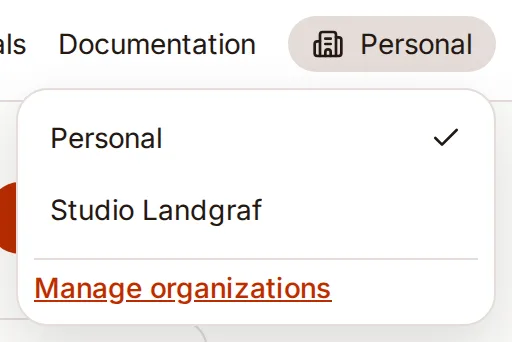
The workspace switcher at the top of the page toggles between your Personal workspace and each of your organizations. The form list only shows the forms of the selected workspace. A form created while an organization is active is attached to it directly.
You can belong to several organizations at once; your personal forms stay private in every case.
Roles
| Role | Rights |
|---|---|
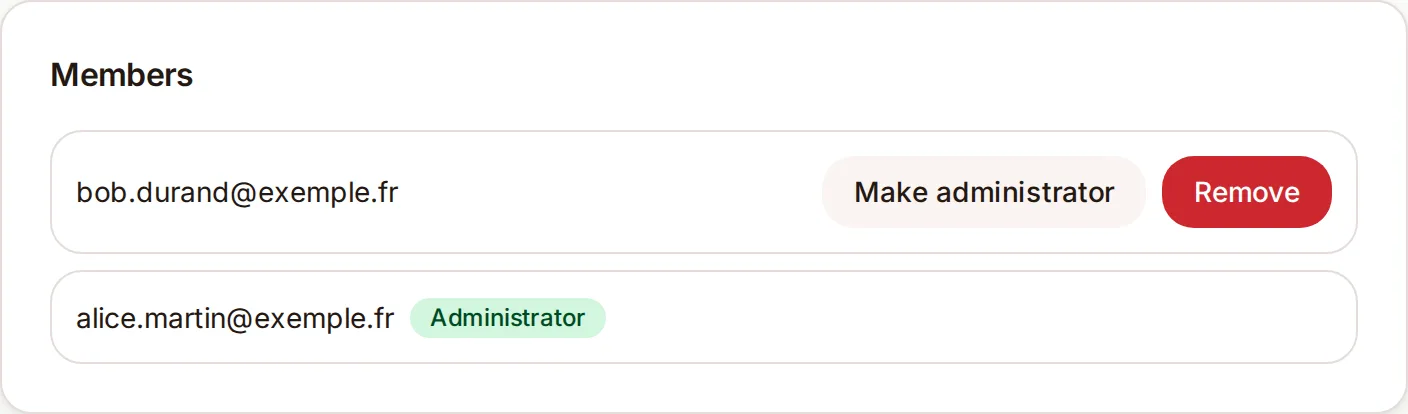
| Administrator | The creator of the organization. The only one who can invite and remove members, transfer administration and delete the organization. Also has member rights on the forms. |
| Member | Manages the organization's forms just like the administrator, but manages neither the members nor the organization itself. Can leave at any time. |
Invite a member
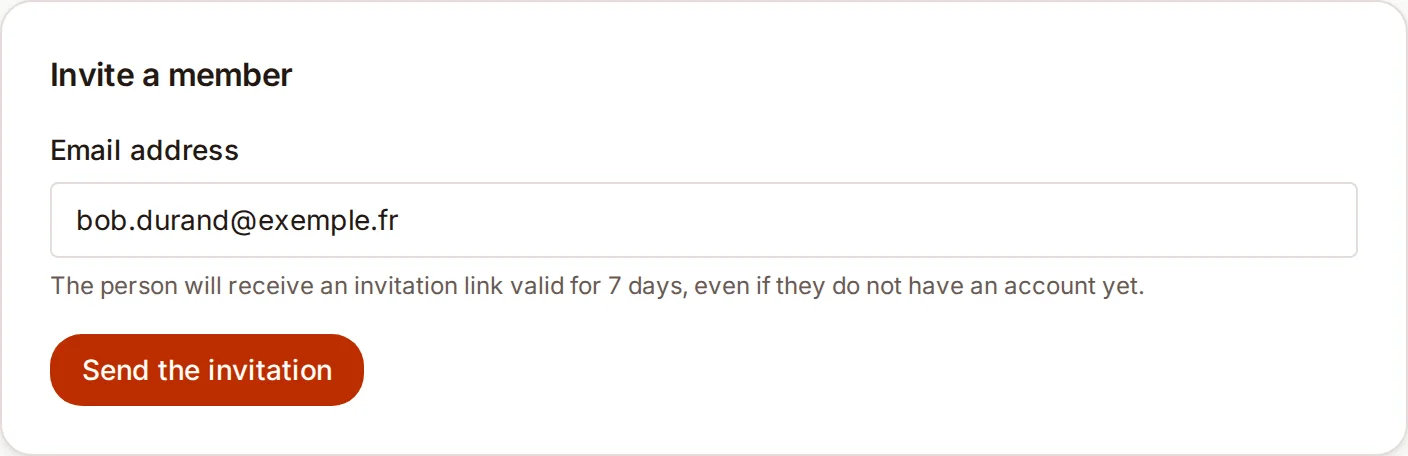
The administrator enters an email address on the organization page. The person receives an invitation link valid for 7 days. They do not need an account yet: if they do not have one, the link takes them to sign-up with their address pre-filled, and they join the organization as soon as their account is created.
An invitation can only be accepted by the address it was sent to, and only once.
Transferring a form
On the page of a personal form, the Organization section lets you transfer it to an organization you are a member of. Its submission URL and statistics are kept: existing integrations keep working.
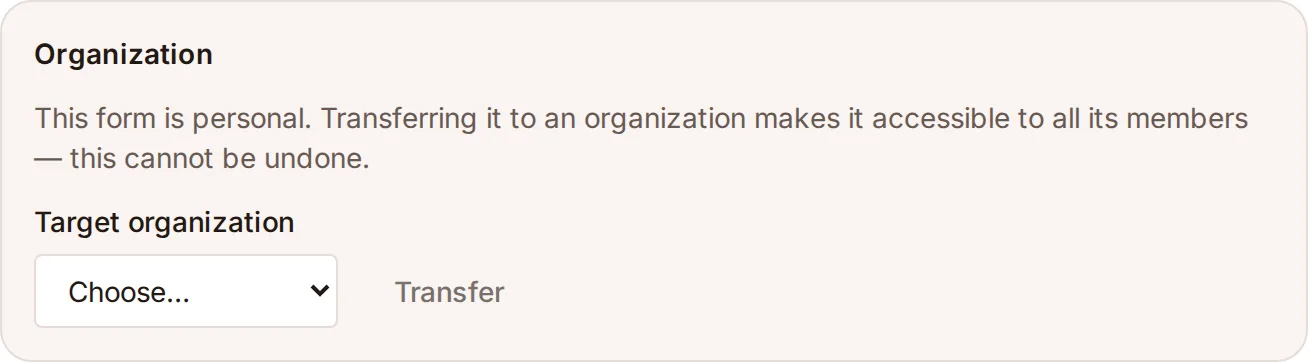
This transfer is permanent: a form attached to an organization can no longer be detached from it, and access then depends solely on membership of that organization. If you leave it, you lose access to the form even if you created it.
Leaving or deleting an organization
A member can leave whenever they like. The administrator must first transfer administration to another member: an organization is never left without an administrator. This rule also applies when you delete your account.
An organization can only be deleted once it contains no forms at all — transfer or delete them first. This prevents accidentally cutting off submission URLs used in production.
Email templates
By default, emails are generated from a built-in HTML template that shows the submitted fields as a label / value table. You can replace this template with your own in the form configuration.
Templates use a simple placeholder syntax (text substitution, with no executable expression language):
| Placeholder | Description |
|---|---|
{{data.nomDuChamp}} | Raw value of a field by its key (e.g. {{data.email}}). The value is HTML-escaped automatically. |
{{#fields}}...{{/fields}} | Block repeated for each field declared on the form. Inside it, {{label}} and {{value}} give the label and value of the current field. |
Example of a minimal template:
<!DOCTYPE html>
<html>
<body>
  <p>New message from {{data.name}}</p>
  <table>
    {{#fields}}
    <tr>
      <th>{{label}}</th>
      <td>{{value}}</td>
    </tr>
    {{/fields}}
  </table>
</body>
</html>
Two independent templates can be defined: one for the email sent to the recipients, one for the confirmation email sent to the sender. If either is left empty, the corresponding default template is used.
Placeholders in the subject
The email subject — both the one sent to recipients and the sender confirmation one — accepts the same {{data.nomDuChamp}} placeholders: a subject New message from {{data.name}} arrives with the submitted value in place of the placeholder. The {{#fields}}...{{/fields}} block makes no sense in a subject and is ignored there.
Two differences from the message body: the value is not HTML-escaped (a subject is not HTML), and the final subject is cut to 200 characters, with line breaks replaced by spaces. A missing or empty field gives an empty placeholder — for a subject that is always filled in, rely on a required field.
Sender confirmation
You can turn on an automatic confirmation email to the person who submitted the form. To do so, configure in your form:
- Sender confirmation enabled — turns the feature on
- Sender email field — the key (
name) of the field holding the sender's email address (e.g.email) - Optional subject and HTML template to customize the email
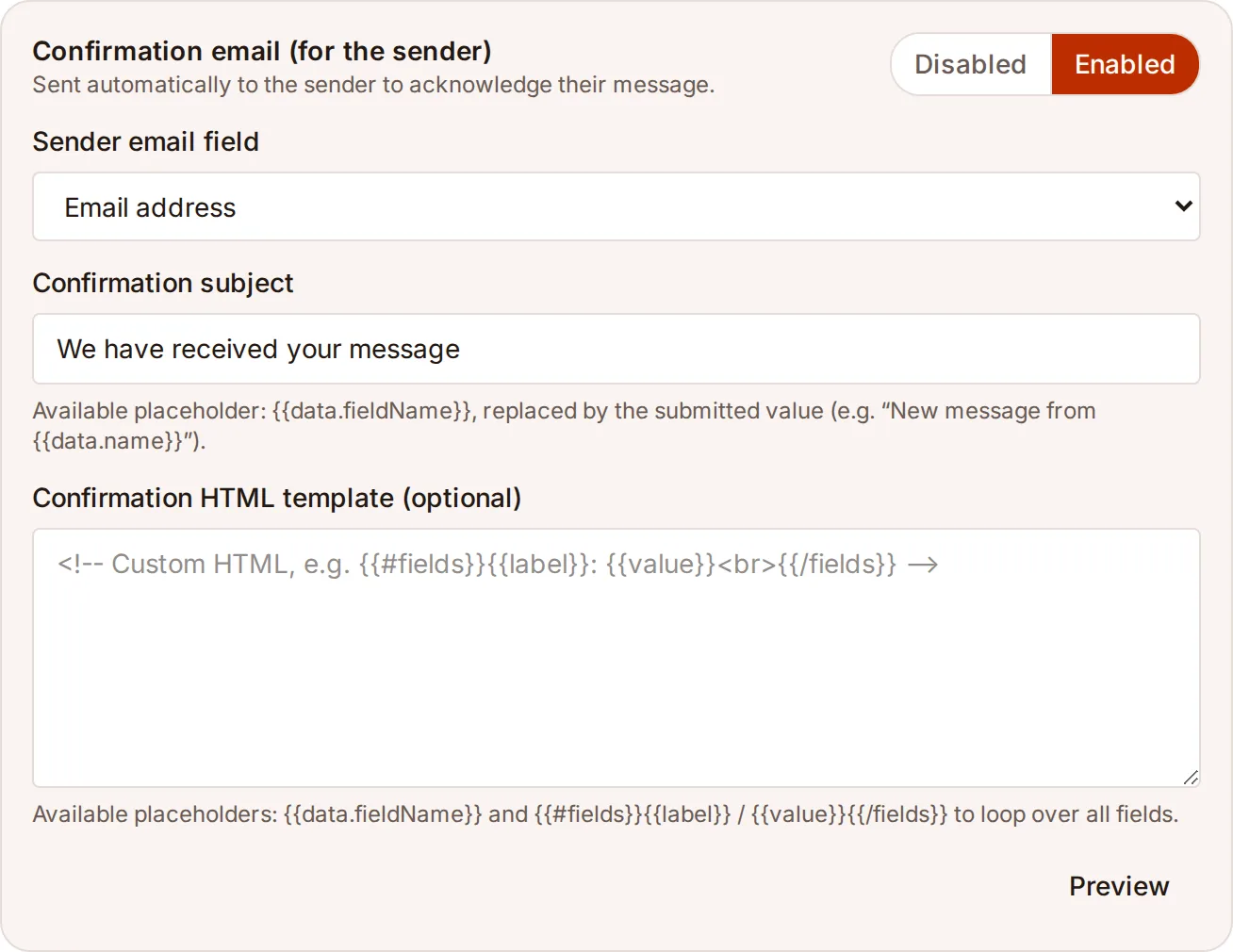
By default, this email is a simple acknowledgement: it does not copy the visitor's answers. The address receiving it is typed into the form by anyone; copying the answers would let someone send text of their choice to any address from your form. A custom template can include them ({{data.nomDuChamp}}), knowingly.
If the designated field is missing or empty on submission, the confirmation is simply skipped — the submission is still a success.
An SMTP error on the confirmation does not affect the submission status: the email to the recipients is considered the main purpose.
| Case | Result |
|---|---|
| Confirmation disabled | No confirmation email sent |
| Email field missing or empty | Confirmation silently skipped, submission SUCCESS |
| Email field present and valid | Confirmation email sent to the sender |
If the email field is not marked required, no confirmation is sent when the sender leaves it empty.
Allowed origins
By default, any origin can submit a form. If you configure an allowlist, AirMess checks the HTTP Origin header of each request.
This restriction prevents another site from embedding your form in the pages it serves to its visitors. It is not authentication: a script outside a browser picks its Origin header freely. Against automated submissions, turn on a CAPTCHA instead.
| Case | Result |
|---|---|
| Empty allowlist | All origins are accepted |
| Origin in the allowlist | 200 — submission accepted |
| Origin missing or not allowed | 403 { "error": "Origin not allowed." } |
Browsers automatically send the Origin header for every cross-origin fetch. Requests without Origin (e.g. server scripts, curl) are blocked as soon as an allowlist is configured.
Expected format: full URL with protocol and domain, without a trailing slash.
✓  https://monsite.fr
✓  https://www.monsite.fr
✗  monsite.fr          (pas de protocole)
✗  https://monsite.fr/ (slash final)
This filter is not access control. The Origin header is only sent by browsers and can be trivially forged by a script (curl, a server-to-server call, etc.). The allowlist blocks accidental or abusive embedding of your form from another website in a browser; it does not protect against a determined attacker calling the API directly. Combine it with a CAPTCHA if you need to restrict who can actually submit the form.
CAPTCHA
AirMess supports hCaptcha and reCAPTCHA v2. Verification happens on the server: you provide your secret key in the form configuration, and AirMess calls the provider's API on every submission.
The secret key is encrypted at rest and never shown again: once saved, the field stays empty. Leave it empty to keep the current key, enter a new value to replace it.
On the client side, embed the CAPTCHA widget in your HTML page. In a classic HTML form, the widget adds its token to the form itself (h-captcha-response or g-recaptcha-response fields): nothing else to do. For a fetch submission, send the token generated by the widget in the JSON body under the captcha-token key.
{
  "nom": "Alice",
  "email": "alice@exemple.fr",
  "captcha-token": "TOKEN_GÉNÉRÉ_PAR_LE_WIDGET"
}
hCaptcha
<!-- In your <head> -->
<script src="https://js.hcaptcha.com/1/api.js" async defer></script>

<!-- In your form -->
<div class="h-captcha" data-sitekey="VOTRE_SITE_KEY"></div>
Get the public key (site key) and the secret key at hcaptcha.com.
reCAPTCHA v2
<!-- In your <head> -->
<script src="https://www.google.com/recaptcha/api.js" async defer></script>

<!-- In your form -->
<div class="g-recaptcha" data-sitekey="VOTRE_SITE_KEY"></div>
Get your keys at google.com/recaptcha.
| Case | Result |
|---|---|
| CAPTCHA disabled | No verification performed |
| CAPTCHA token missing | 400 { "error": "Missing CAPTCHA token." } |
| Invalid or expired token | 403 { "error": "CAPTCHA verification failed." } |
| Valid token | The submission proceeds normally |
Rate limiting
Two limits apply to every submission:
- 5 submissions per minute per IP address, a counter shared across all forms;
- 60 submissions per hour per form, across all IP addresses: a network of bots each staying under the per-IP limit cannot flood your recipients.
When a limit is exceeded, the response is 429 { "error": "Too many requests. Please try again in a moment." }, with a Retry-After header giving the delay in seconds before the next possible attempt.
The IP address used is the one seen by AirMess's front proxy: an X-Forwarded-For header added by the client itself is not taken into account.
Limits and retention
AirMess is free. No monthly quota applies at this time; the limits below protect the service against abuse. Any change to these limits or to the free offer will be announced before it takes effect.
| Limit | Value |
|---|---|
| Submission rate | 5 per minute per IP address, across all forms, and 60 per hour per form (see Rate limiting) |
| Recipients | At most 10 addresses per form |
| Verification and invitation emails | 30 per day per account, once the account address is confirmed |
| Request size | 256 KiB maximum |
| Submission retention | 12 months, then the content and delivery history are deleted automatically |
| Export | A form's submissions and statistics can be exported as CSV from its tracking page, at any time |
Remember to export the submissions you want to keep for longer than 12 months.
Email deliverability
Notification emails are sent from a domain authenticated with SPF, DKIM and DMARC: they are not sent from your visitors' address, which would get them rejected as spoofing.
The Reply-To field is filled in automatically with the visitor's address, taken from the first Email field with a valid value: “Reply” in your mail client writes directly to the person who filled in the form.
If you configure your own SMTP server (the form's SMTP tab), deliverability then depends on your domain: publish SPF, DKIM and DMARC records on it, and use a sender address from that domain.
An email missing from your inbox? First check your spam folder, then the form history: a SUCCESS submission means the message was handed to the sending server. A submission marked FAILED shows the error reported by your SMTP server if you configured one; with AirMess's server, the reason shown stays generic, the details being reserved for the operations team.
Response codes
| Code | Meaning |
|---|---|
200 | Email sent successfully |
202 | Submission accepted, still sending after a few seconds (slow SMTP relay) — it finishes in the background, and the submission can be viewed in the dashboard once resolved |
303 | Classic HTML form: redirect to the configured URL after a successful submission |
400 | Required field missing or CAPTCHA token absent — the body contains the list of missing fields |
403 | Origin not allowed or CAPTCHA verification failed |
404 | Unknown form token, disabled form, or no verified recipient |
413 | Request body larger than 256 KiB |
415 | Unsupported content type: use a classic HTML form (application/x-www-form-urlencoded), a FormData (multipart/form-data) or JSON (application/json) |
429 | Rate limit exceeded for this IP or this form — the Retry-After header gives the waiting time |
500 | SMTP sending error — the submission is recorded with the FAILED status |